Remove Background Music From Video and Keep the Voice
To remove background music from video or audio, you separate the speech from the music under it. This free background music remover keeps the dialogue and drops the music right in your browser, so your footage never leaves your device.
Add an MP4, MOV or WebM video and download the clean voice as a WAV. You can also remove music from audio files in MP3, WAV or M4A format.
How to remove background music from a video
You can remove music from video files in four steps, then sync the clean voice in your editor.
1. Add your file
Drop in a video or audio file up to 8 minutes and 150 MB.
2. Pick an engine
AI separation gives the cleanest speech. Quick finishes in seconds and suits studio recordings.
3. Compare
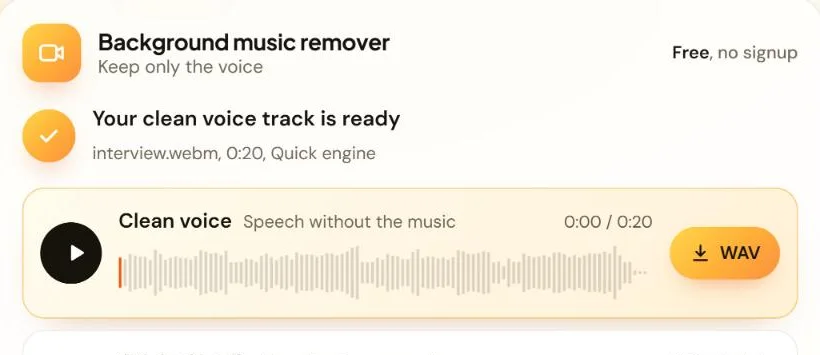
Play the clean voice next to your original audio and listen for leftover music.
4. Download
Save the clean voice as a WAV. To get the music track too, choose “Also download the removed music.”

Put the clean voice back on your video
You get audio back, not a new video, so you finish in your editor. The clean voice is exactly as long as your original, so it stays in sync.
- Import the WAV into your project in CapCut, Premiere Pro, DaVinci Resolve or another editor.
- Place it on a new audio track, starting where the clip starts.
- Mute or delete the original audio track.
- Add a new soundtrack if you want one, then export.
AI music remover or Quick: which should you use?
Use AI separation when the music is loud, busy or mixed right under the dialogue. Use Quick for a result in seconds from a clean studio recording, where the voice usually sits in the center of the stereo mix.
| Feature | AI separation | Quick |
|---|---|---|
| How it works | HTDemucs separates the voice from the music and keeps the voice | Keeps the center of the stereo mix and turns down the rest |
| Best for | Dialogue with music mixed right under it, busy mixes, mono recordings | Studio voiceovers with stereo music around them |
| Speed in our test (20-second clip) | About 3 to 4 minutes | About 4 seconds |
| Longest file | 6 minutes | 8 minutes |
| Settings | None | Music reduction and Speech focus |
| Runs best on | A browser that can use your graphics card | Any modern browser |
If Quick leaves music behind, the tool offers to rerun the file with AI separation.
What do Music reduction and Speech focus do?
Both settings appear after a Quick run. Music reduction sets how hard the tool turns the music down: Light, Balanced (the default) or Strong.
Speech focus is on by default. It keeps the main frequency range of the voice and trims deep bass and high treble. Change a setting, then click Apply changes.

What works well, and what's harder
A single speaker over a music bed is the easiest case. Vlogs, interviews, lectures, tutorials and podcast intros usually come out clean.
These recordings are harder to clean:
- Music with a singer. The AI treats singing as a voice, so background lyrics can stay in the clean voice track.
- Very loud music. Music that drowns out the speaker can leave faint traces.
- Heavy voice effects. Strong reverb or pitch effects blur the line between voice and music.
- Overlapping speakers. Several voices over music at once are harder to separate.
For these, use AI separation and the best copy of the file you have.
Can removing the music fix a copyright claim?
It can help, but you shouldn’t count on it. When you remove background music from video, faint traces can remain under the speech, and detection systems may still find them. YouTube scans uploads with Content ID, which compares them against reference audio from copyright owners (YouTube Help).
If a video has a claim, YouTube Studio lets you trim the claimed segment, replace the song with a YouTube Audio Library track, or erase the song (YouTube Help). A successful edit clears the Content ID claim, but the safest route is music you have a license for.
Your footage stays on your device
Many online music removers upload your file to a server. This one runs the AI model in your browser tab, so client footage and unreleased episodes stay on your computer.
The first time you use AI separation, your browser downloads the model (about 180 MB) once and caches it. The model runs best on your graphics card through WebGPU. Without WebGPU, AI separation gets very slow and the tool recommends Quick.
Google’s web.dev team reports WebGPU support in Chrome and Edge 113 or later on Windows, macOS and ChromeOS. Firefox 141 or later supports it on Windows, and Safari 26 supports it too (source).
How we built and tested this tool
The team behind VocalRemover builds and maintains this tool. Its AI engine uses HTDemucs, an open-source model from Meta. Meta’s researchers report state-of-the-art results on the MUSDB music separation benchmark (paper).
We tested both engines in Chrome on a Windows laptop with a 20-second stereo test clip. Quick finished in about 4 seconds and saved a mono clean-voice file plus a stereo music file. With the model already cached, AI separation took about 3 to 4 minutes. Times vary with your device and file length.
More free audio tools
These tools also run in your browser:
- Vocal Remover splits a song into a vocal track and a music track.
- Karaoke Maker gives you the band without the singer.
- Acapella Extractor keeps only the singing.
- Instrumental Maker keeps only the music.
Background music remover FAQ
Is this background music remover free?
Yes, it’s free to use, and you don’t need an account. You only need a modern browser and a video or audio file on your device. Quick runs in any modern browser, and AI separation runs best on a graphics card.
Is my video uploaded?
No, your file is never uploaded. Your browser builds the clean voice track on your device, so your footage never reaches a server. The only download is the AI model, about 180 MB, which your browser fetches once and caches.
Do I get a video file back?
No, you get the clean voice as a WAV file. Add it to a new audio track in your editor, start it with the clip and mute the original audio. It’s exactly as long as your original, so it stays in sync.
Will it remove background music that has singing in it?
Only partly, because the AI treats singing as a voice. Lyrics in a background song can stay in the clean voice track along with the dialogue. Instrumental music comes out much more cleanly. If the singing still comes through, replace the music in your editor.
Does it remove background noise too?
No, this tool is built for music, not noise like wind, traffic or hum. If you recorded the video on an iPhone 16 or later, the Audio Mix setting in the Photos app can reduce background sound in videos recorded with Spatial Audio (MacRumors).
How long can my file be?
Files can be up to 8 minutes and 150 MB. AI separation handles files up to 6 minutes, so split a longer recording into parts or use Quick, which works on the full 8 minutes. Shorter files also finish faster with either engine.
Can I remove music from a YouTube video?
You can’t paste a link, because the tool can’t fetch videos from YouTube or other sites. It can read an MP4, MOV or WebM file saved on your device. If your own upload has a music claim, YouTube Studio also offers an Erase song option.
Why is AI separation slow on my computer?
It runs a large AI model, which takes minutes rather than seconds even on a graphics card. If your browser can’t use your graphics card, it gets very slow, and the tool recommends Quick instead. Updating to a browser version with WebGPU support helps.
Get the voice without the music
Choose a video or audio file and remove the background music right in your browser.
Last updated: November 2026